
OBS Slow Internet Streaming: Keep Your Stream Stable
With the right setup, OBS slow internet streaming works far better than most people expect. The trick is to size the stream to your connection. First, you will measure your real upload speed. Then you will choose a bitrate with room to spare and keep the stream alive on small uploads, shared Wi-Fi or a hotspot.
CBR
Rate control
480p
Start here under 2 Mbps upload
~450 MB
Data per hour at 1,000 Kbps
Bitrate ranges from YouTube Help; the data figure is simple maths
If you are new to OBS, read our OBS Studio tutorial first. The bitrate figures below come from YouTube’s encoder settings page.
OBS Slow Internet Streaming Starts With Upload Speed
When you stream, your computer sends video out to the platform. That uses your upload speed. Then again, many plans advertise a big download figure. However, the upload is often much smaller, above all on older broadband and mobile data.
So your upload speed decides your stream quality. Know it before you change anything in OBS Studio.
Step 1: Measure Your Real Upload Speed
- Close other apps and pause downloads on every device at home.
- Run a speed test at the time of day you plan to stream.
- Note the upload figure in Mbps. Repeat it two or three times and take the lowest.
Evening speeds are often lower when many people at home and nearby are online. So test at your actual streaming time, not in the morning.
Step 2: Pick a Bitrate With Room to Spare
Your OBS bitrate should sit well below your lowest measured upload. A margin keeps the stream steady when the speed dips.
| Your lowest upload | Suggested resolution | Suggested OBS bitrate |
|---|---|---|
| Under 2 Mbps | 480p at 30 fps | 800 to 1,200 Kbps |
| 2 to 4 Mbps | 480p or 720p at 30 fps | 1,500 to 2,500 Kbps |
| 4 to 7 Mbps | 720p at 30 fps | 3,000 to 4,000 Kbps |
| 7 to 12 Mbps | 720p at 60 fps or 1080p at 30 fps | 4,500 to 6,000 Kbps |
For reference, YouTube lists 0.4 to 4 Mbps for 480p and 3 to 8 Mbps for 720p at 30 fps with H.264. Our suggestions stay inside those ranges while leaving headroom.
Step 3: Set OBS for Slow Internet Streaming
In Settings, then Output, switch to Advanced mode and use these values:
- Rate control: CBR, as YouTube recommends.
- Bitrate: from the table above.
- Keyframe interval: 2 seconds.
- Audio bitrate: 128 Kbps, or 96 Kbps on very slow connections.
Then, in Settings, then Video, set the output resolution to match the table. A sharp 480p stream beats a blurry 720p one that keeps freezing.
Step 4: Turn On Dynamic Bitrate
OBS can lower the bitrate on its own when the network struggles, instead of dropping frames. Open Settings, then Advanced, and tick the dynamic bitrate option under Network. When the connection recovers, OBS raises the bitrate again.
This works well for mobile data, where speeds go up and down during a stream.
Step 5: Use a Wired Connection When You Can
Wi-Fi adds drops and delays, and walls make it worse. Also, if your PC is near the router, a LAN cable is the single best fix for unstable streams. In fact, without a cable, move closer to the router or use the 5 GHz band.
OBS Slow Internet Streaming From a Mobile Hotspot
Many Indian creators stream from phone data when fibre isn’t available. It can work with a few rules.
- Place the phone where the signal is strongest, often near a window.
- Keep the phone charging, since a hotspot drains the battery fast.
- Start at 480p and around 1,000 Kbps, then test before you raise it.
- Turn on dynamic bitrate in OBS.
- Watch your data pack. A one-hour stream at 1,000 Kbps uses about 450 MB, and higher bitrates use more.
That data figure is simple maths: 1,000 Kbps for 3,600 seconds is 3.6 million kilobits, which is about 450 MB.
Reduce Everything Else on the Network
Other devices share your upload, often without you noticing.
- Pause cloud backups such as Google Photos or OneDrive while you stream.
- Ask family members to pause large uploads during your stream.
- Close game launchers, which may update in the background.
- Turn off automatic updates on your PC for the stream window.
Keep OBS Slow Internet Streaming Alive Through Power Cuts
In many Indian homes, the router switches off with the power, even when the PC runs on a UPS or a laptop battery. A short cut can end your stream.
- Power the router from an inverter or a small UPS. Then a power cut doesn’t cut the internet too.
- Turn on automatic reconnect in OBS. It lives in Settings, then Advanced, under Stream Delay and Automatic Reconnect. Set a few retries with a short delay, so OBS tries again by itself.
- Keep a “Be right back” scene ready. If the connection returns, switch to it while you settle.
- Tell viewers your backup plan at the start, such as a community post if the stream ends early.
These steps won’t fix a long outage, but they save most streams from short drops.
Read the OBS Stats Panel
Open View, then Stats, while you stream. Two numbers matter most:
- Dropped frames (network): if this climbs, your bitrate is too high for the connection. Lower it.
- Encoding overloaded: this is a PC problem, not an internet one. See our guide to OBS settings for low-end PCs.
A healthy stream shows close to zero dropped frames over several minutes.
Keep a Local Recording as a Backup
Even with good settings, a slow connection can fail. So keep a recording on your PC while you stream. Your local copy keeps full quality, and you can upload it later if the live stream breaks. On a weak PC, record at the same resolution as the stream to keep the load low.
For the YouTube steps, read our OBS YouTube live streaming guide.
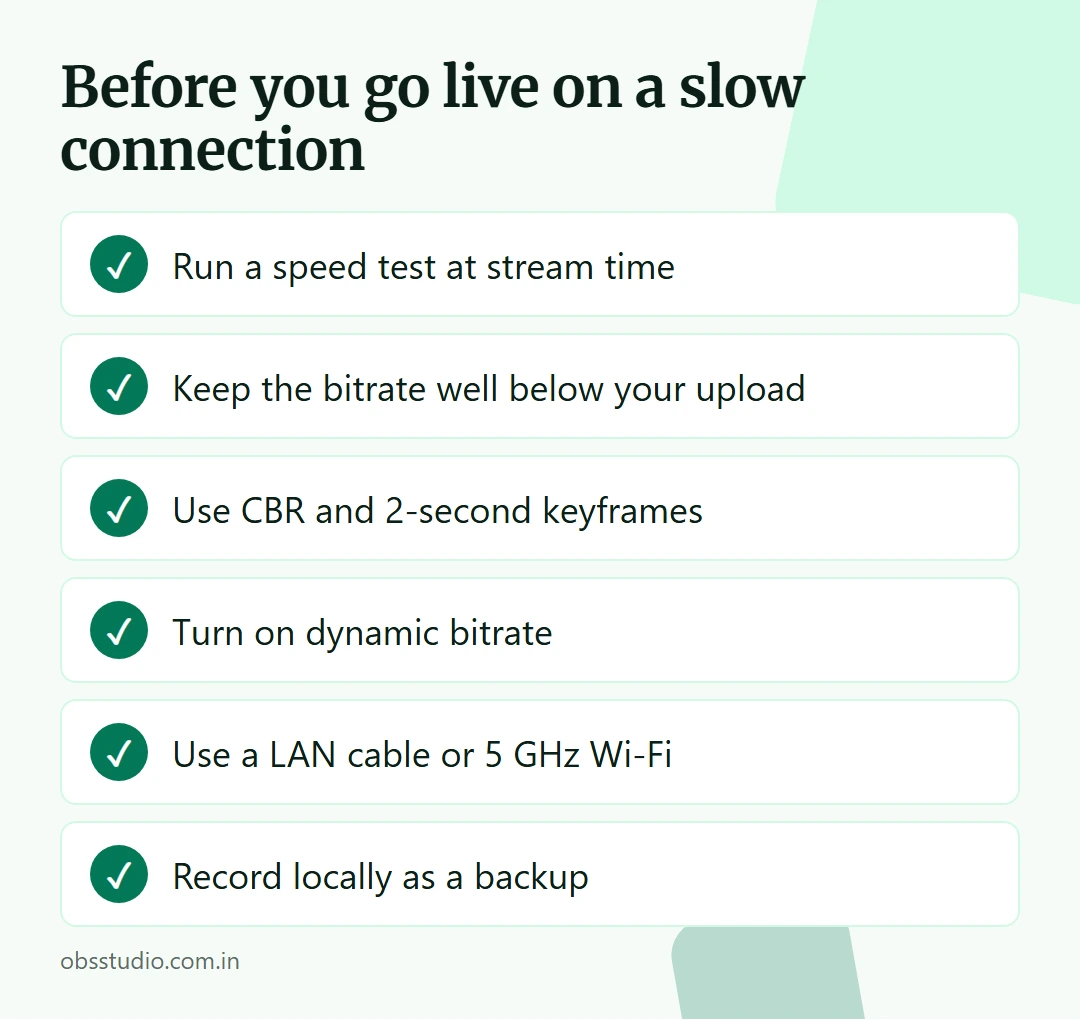
Pre-Stream Checklist for OBS Slow Internet Streaming
| Check | Why |
|---|---|
| Speed test at stream time | Real upload, not the advertised figure |
| Bitrate well below the upload | Room for dips |
| CBR and 2-second keyframes | YouTube’s recommendation |
| Dynamic bitrate on | Fewer dropped frames |
| LAN cable or 5 GHz Wi-Fi | Fewer drops |
| Local recording on | A backup if the stream fails |
PC struggling too?
Lower the load on budget laptops with the right encoder.
OBS Slow Internet Streaming FAQ
What upload speed do I need for OBS slow internet streaming?
You can stream at 480p with under 2 Mbps of upload if you keep the bitrate near 1,000 Kbps. In addition, for 720p, aim for an upload of at least 4 to 5 Mbps.
Why does my stream lag when my internet seems fast?
Most speed figures show download. Besides, your upload may be much smaller. On top of that, test the upload and lower the OBS bitrate to fit it.
Can I stream from Jio or Airtel mobile data?
Yes, through a hotspot, if the signal is steady. Also, start at 480p, turn on dynamic bitrate, and watch your data use.
Is 480p good enough for YouTube?
For talking, teaching and slow games, yes. A stable 480p stream is better than a 720p stream that buffers.
Does lowering the bitrate reduce audio quality?
Not directly. Video and audio have separate bitrates. Keep audio at 128 Kbps if you can, since clear sound matters most.
Disclaimer
OBSStudio.com.in is an independent guide for Indian creators. In addition, it has no link to the OBS Project, YouTube or any internet provider.